
AiBar
Your custom toolbar for Illustrator. Run menu commands, scripts, and actions from a customizable panel.
Stop digging through menus.
AiBar lets you put your most-used Illustrator commands, scripts, and actions into a single toolbar. Click a button and the command runs. That is it.
No more searching through submenus. No more forgetting shortcuts. Build your toolbar once and save time every day.
If Illustrator can do it, AiBar can run it.
Menu Commands
Any Illustrator menu item turned into a button. Object, Type, Effect, Path and more. Over 300 commands available.
Actions
Run your saved Illustrator Actions with one click. Connect any action set without extra setup.
JSX Scripts
Add your own .jsx or .js scripts to the toolbar. Any script becomes a one-click button.
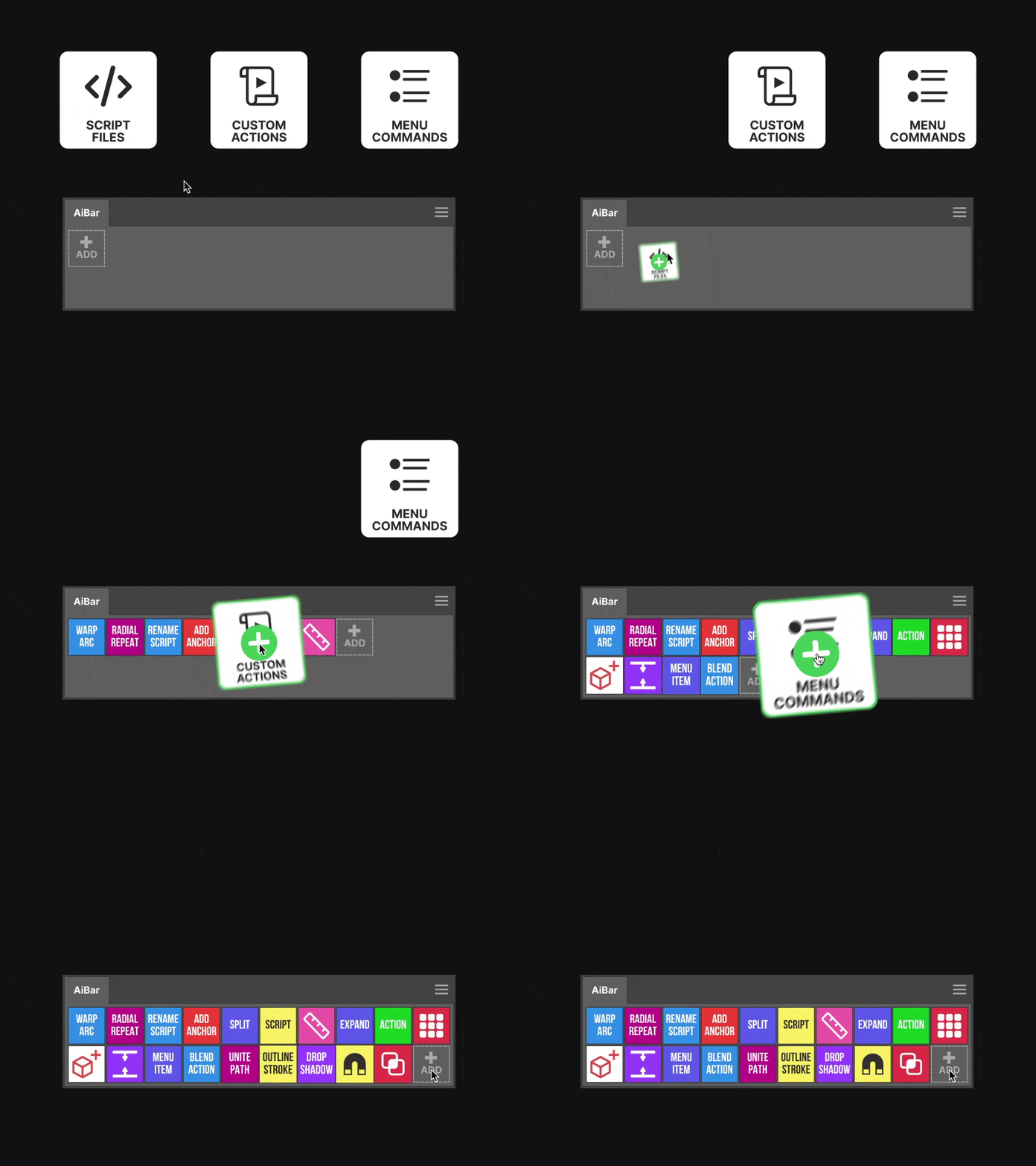
Drag items in,
new commands appear.
Build a working toolbar in seconds instead of setting up every button by hand.
Drop Menu Commands, Actions, or JSXBIN scripts straight into an empty AiBar panel and AiBar turns each drop into a new command automatically.
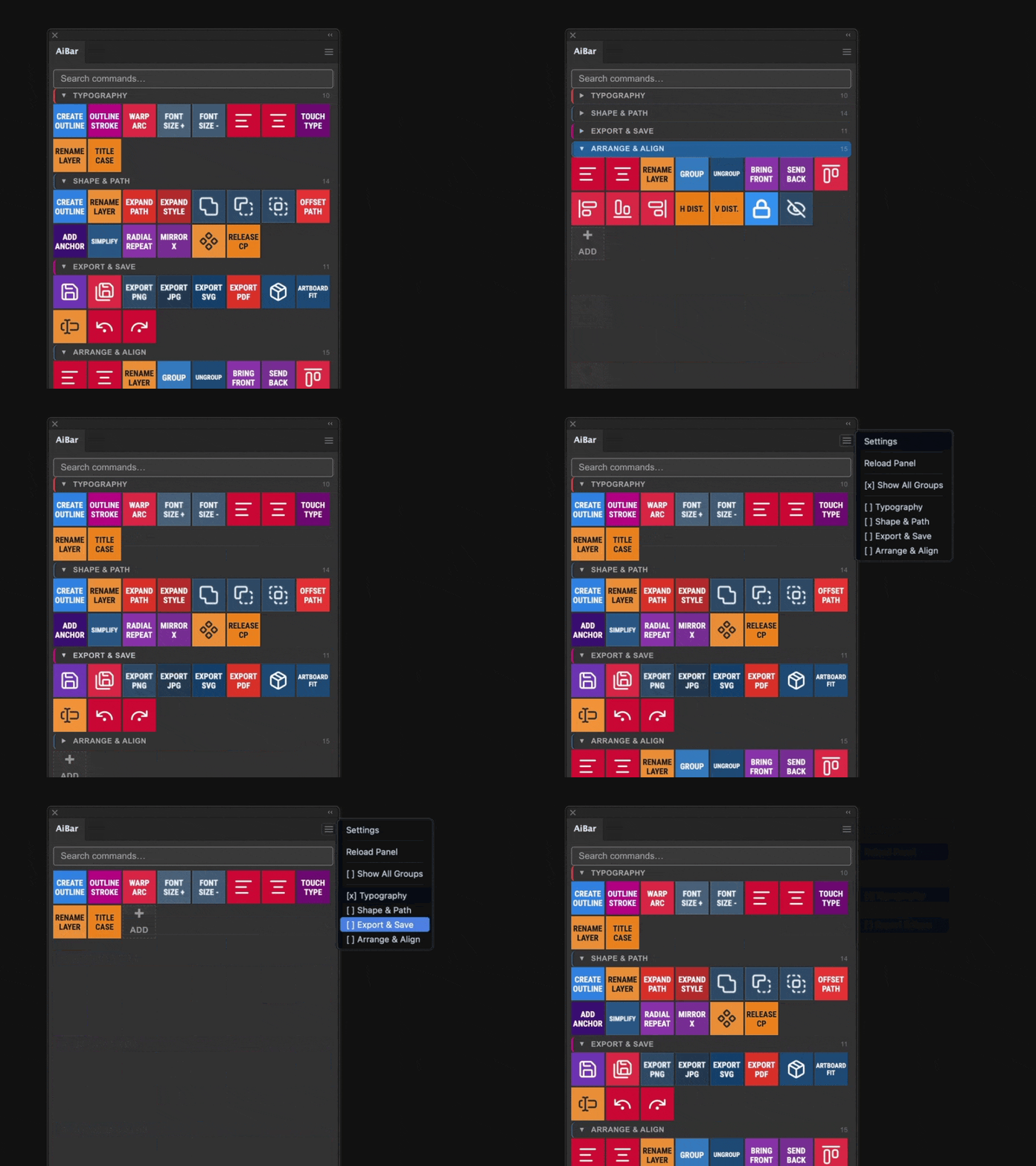
One toolbar for
every workflow.
Keep different clients, projects, and tasks in one toolbar without turning it into a mess.
Command Groups let you switch layouts in one click, and one command can belong to multiple groups at the same time.
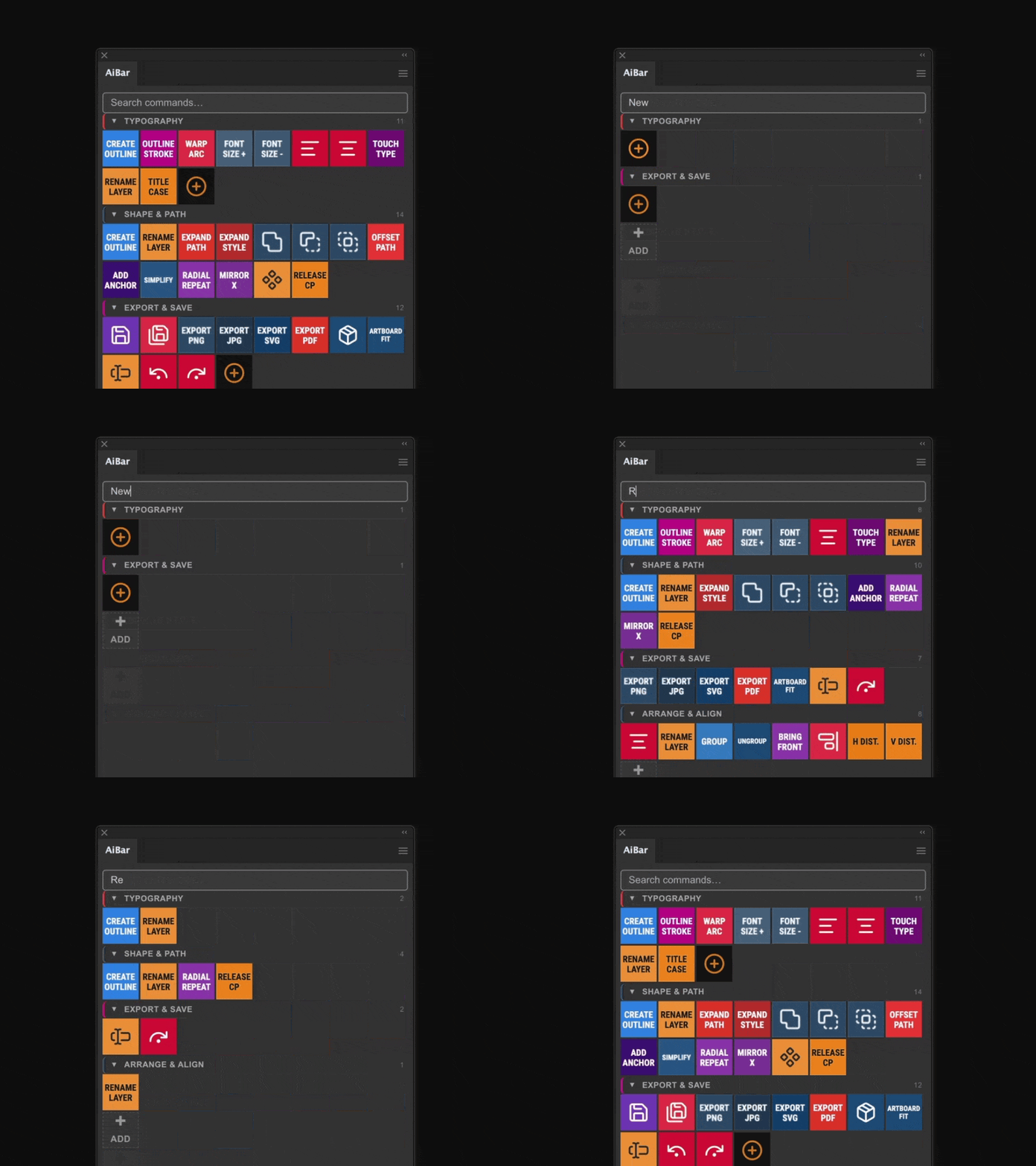
Find any command
in seconds.
Jump to the button you need without scrolling through a crowded panel.
The search bar filters as you type, and you can search inside the active group only or across all groups at once from Settings.
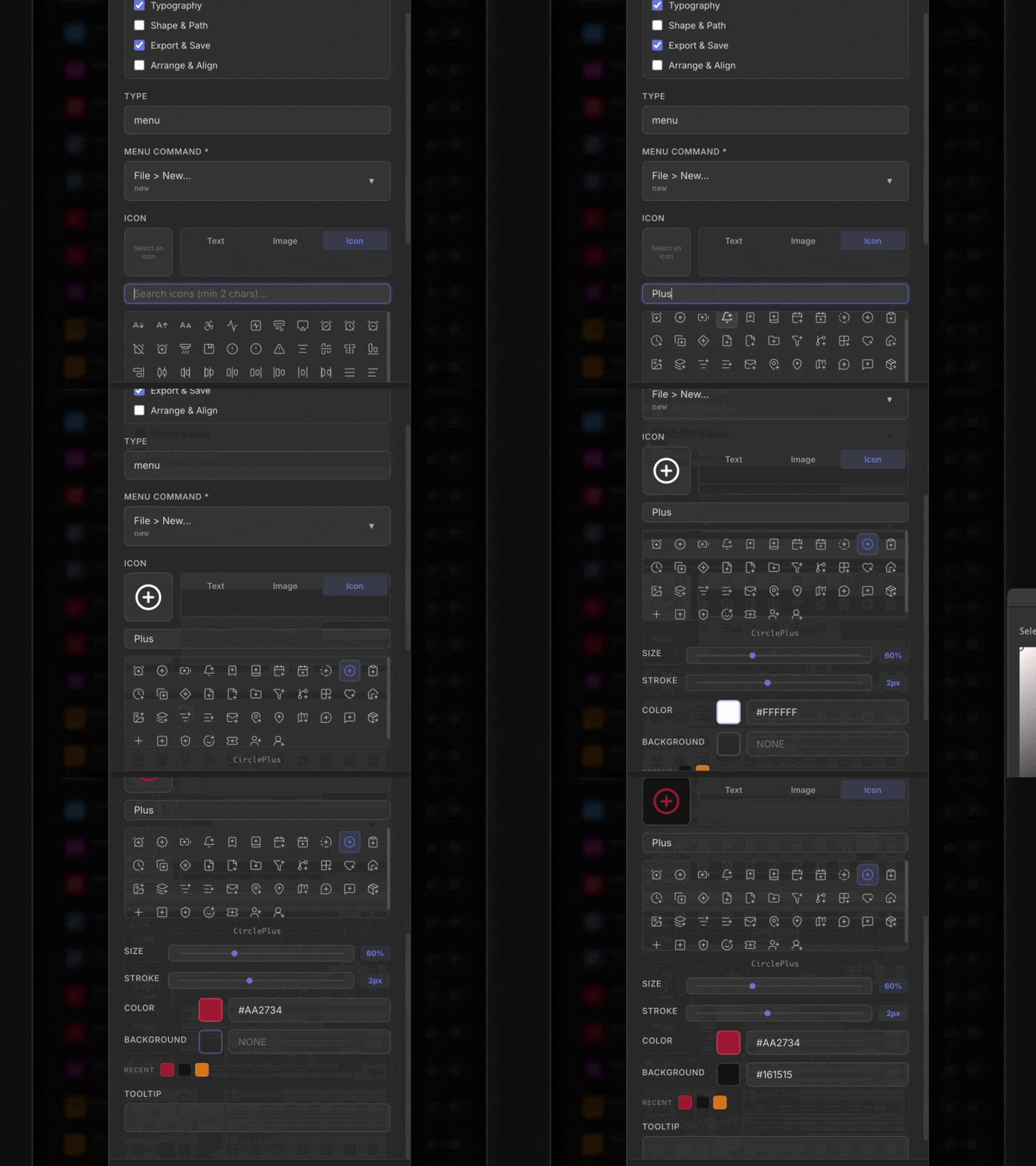
Icons built
right inside.
Style commands faster without hunting for external icon files.
A searchable icon library now lives inside the Edit Command dialog, with separate size and stroke controls plus quick-access recent colors.
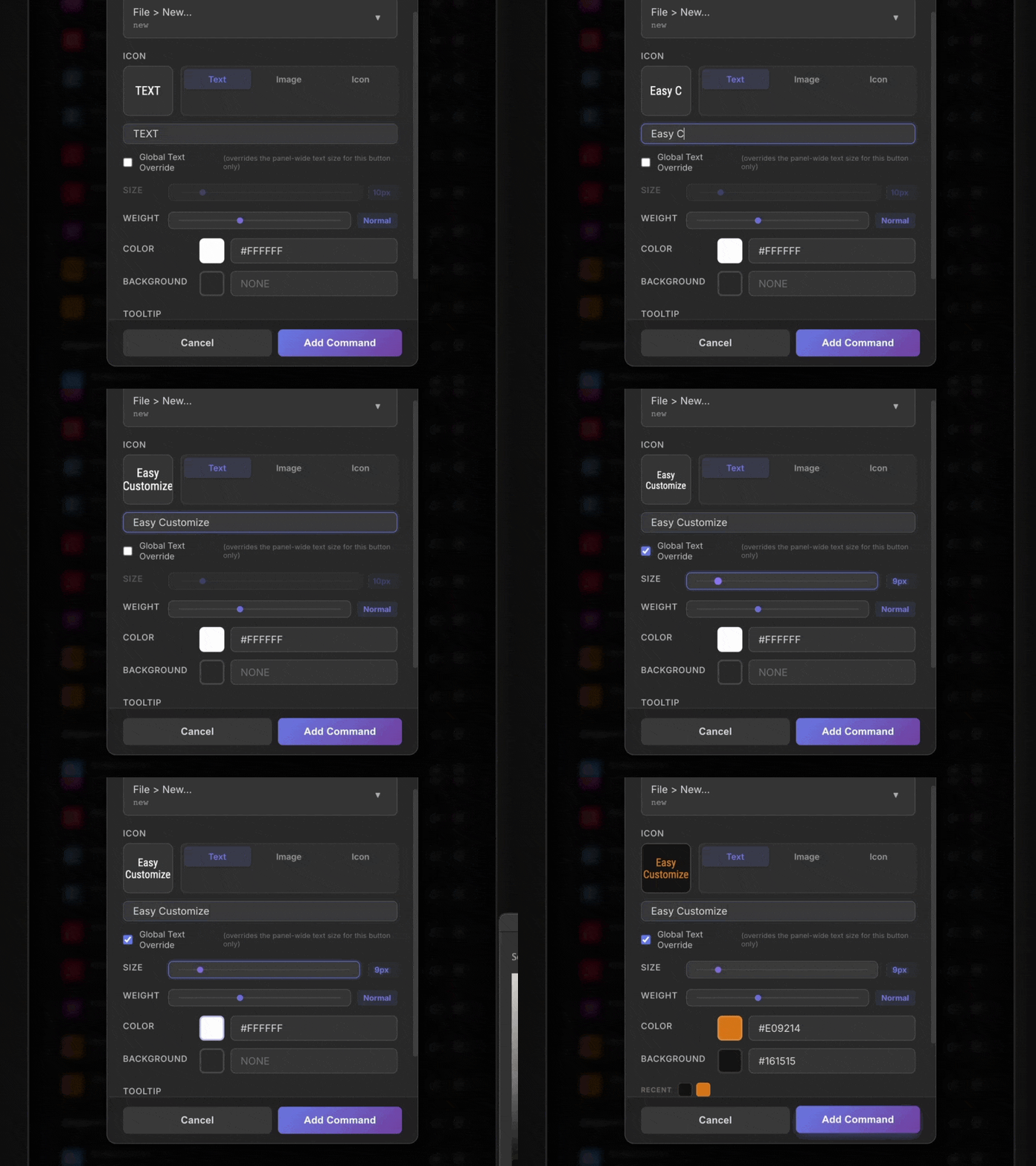
Color code
your toolbar.
Spot the right button at a glance instead of reading every label.
Text buttons support custom background colors, and the preview updates instantly whether you use the picker or a hex value.
See everything AiBar can do.
Watch the full walkthrough to learn how to set up your toolbar, create commands, and get the most out of every feature.
Whats new in AiBar.
Added
- Command Groups: Organize buttons by project or task. Switch between groups instantly.
- Search Bar: Filter commands as you type. Search active group or all groups.
- Built-in Icon Library: Searchable icons inside the Edit Command dialog. No imports needed.
- Button Background Color: Custom background colors for text buttons.
- Global Text Size: Set font size for all text buttons at once. Per-button override available.
- Right-click Context Menu: Edit any button directly from the toolbar.
Fixed
- Button contrast breaking on Illustrator theme change
- Scrollbar not appearing with large command counts
- Tooltips clipping at panel edges
- Native OS error dialogs replaced with custom UI notifications
Initial bug fix release. Stability improvements.
Initial release.
Everything you need to get started.
Easy Installation (Recommended)
The easiest way to install AiBar is using the aescripts + aeplugins manager.
- Download the manager from aescripts.com
- Install and open the manager, then log in to your aescripts account
- Find AiBar in your product list and click Install
- To try before you buy, select Add Trial from the Account menu
Alternative: ZXP Installer
- Download the AiBar package from aescripts.com
- Download and install ZXP Installer
- Drag the AiBar.zxp file into ZXP Installer
- Restart Illustrator
- Go to Window > Extensions > AiBar
When you first open AiBar, a license screen appears.
If you purchased AiBar:
- Find your license key in your purchase confirmation email
- Paste the key into the field and click Activate
- You are ready to go
If you want to try first:
- Click Start Trial
- Full functionality is available during the trial period
- Your settings are saved even after the trial ends
- Open Illustrator
- Go to Window > Extensions
- You should see AiBar in the list
- Click it to open the panel
If you do not see it:
- Make sure debug mode is enabled via ZXP Installer > Utilities > Enable Debug Mode
- Check that Illustrator CC 2022 or newer is installed
- Try reinstalling
AiBar does not appear in the Window menu
Enable debug mode via ZXP Installer (Utilities > Enable Debug Mode), then restart Illustrator. Also check that the com.onderk.aibar folder is in the correct location:
Mac: /Library/Application Support/Adobe/CEP/extensions/Windows: C:\Program Files (x86)\Common Files\Adobe\CEP\extensions\Wrong Illustrator version error
AiBar requires Illustrator CC 2022 or newer. Update via the Creative Cloud app.
License check failed
Check your internet connection. Wait a few minutes and click Retry. If a firewall is blocking the connection, add an exception for Illustrator.
Panel opens but shows nothing
Wait 2–3 seconds for the panel to load.
- If still blank: right-click inside the panel and select Reload Panel
- On Mac: give Illustrator Full Disk Access in System Preferences > Security and Privacy
- On Windows: run Illustrator as Administrator
License activation fails
Copy the license key directly from your email - do not type it manually. Make sure there are no extra spaces before or after the key. If the key still does not work, contact support at aescripts.com/helpdesk.
Can I use AiBar on multiple computers?
Yes. To use on an additional machine, deactivate on one first via Settings > Manage License.
My button does not work. Why?
- For Menu Commands: verify the exact command name
- For Actions: check the spelling - it is case-sensitive
- For Scripts: make sure the file still exists at the same path
Where can I find free icons?
Icons8.com, FlatIcon.com, IconFinder.com, Font Awesome. Use SVG format for best quality. Keep files under 100 KB.
My settings do not save.
- Mac: Give Illustrator Full Disk Access in System Preferences > Security and Privacy
- Windows: Run Illustrator as Administrator
How do I back up my toolbar?
Go to Settings > Export. Or copy toolbar-state.json from Settings > Open State Folder.
Does my license expire?
No. AiBar is a one-time purchase. All future updates are included for free.
Build your
perfect toolbar.
Works with Illustrator CC 2022 and newer. Mac and Windows.
Get AiBar on aescripts →One-time purchase · Lifetime free updates