
Faux Lock
Stop fighting adjustment layers, guides, and mattes that swallow your clicks.
Lock them in the viewport, keep editing them in the Timeline. Faux Lock marks layers as click-through in the Composition viewer without turning them into untouchable Timeline objects.
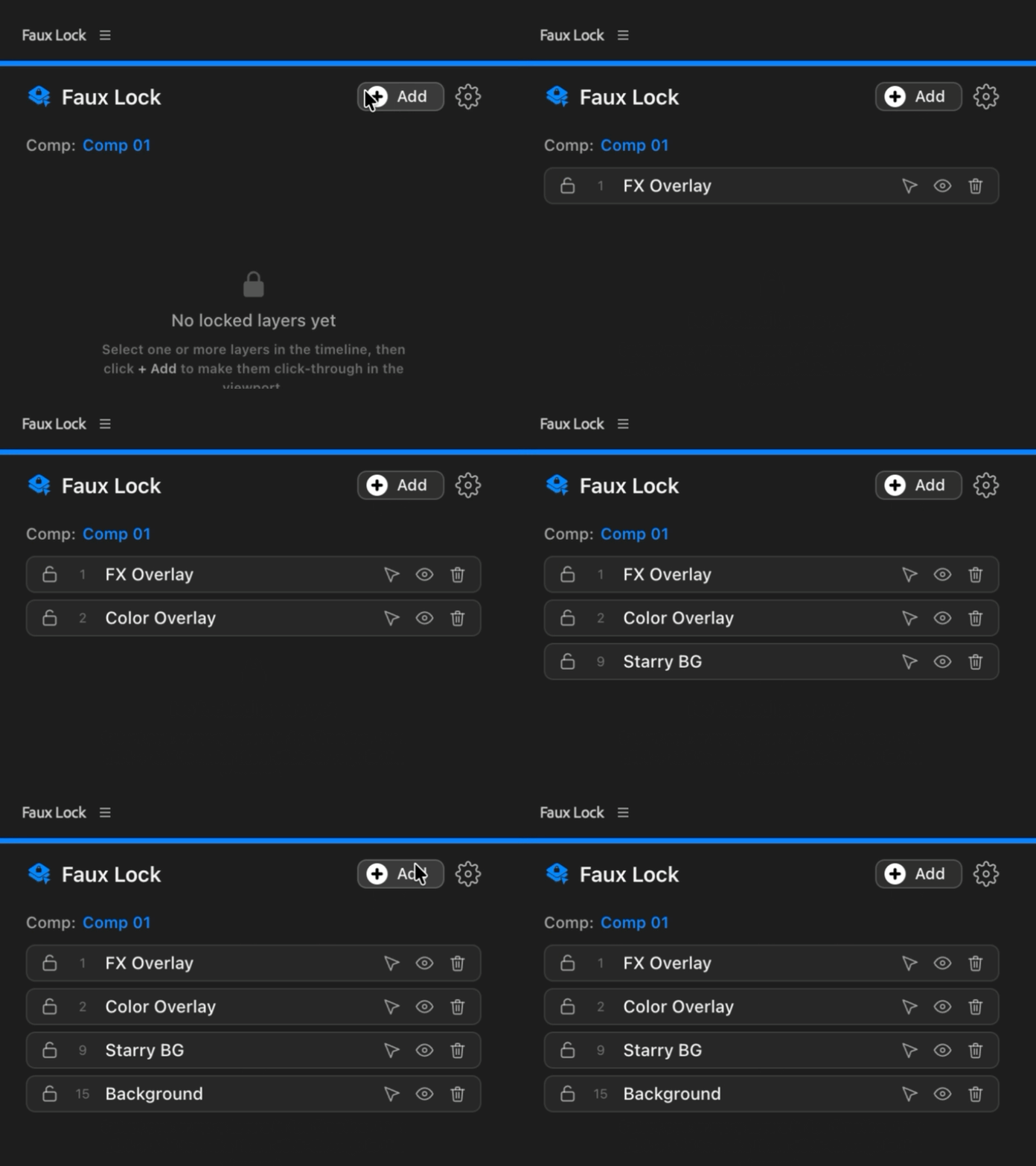
Faux Lock may add a small "Faux Lock" entry to After Effects Undo History when it switches a target between locked and editable states. This is expected After Effects behavior, not a project or plugin error.
Selection click-through for Adobe After Effects.
The classic problem is a full-comp adjustment layer that intercepts every click in the canvas when you are trying to pick the layers beneath it.
Native Cmd/Ctrl+L locks a layer everywhere. Faux Lock splits the surfaces: locked where it gets in your way, free where you actually edit.
Built for layers that keep getting in the way.
Viewport click-through
Targets pass clicks to the layers beneath them in the Comp viewer, while staying editable in the Timeline.
Native real-time engine
Live cursor hit-testing runs through a native After Effects plugin, not an ExtendScript workaround.
Automatic switching
Select a target in the Timeline to free it, then click back in the viewport to re-lock it.
Multi-target panel
Lock many layers at once, bulk select, hide, remove, or jump to a target from the panel.
Minimal Undo footprint
Each lock/unlock switch is grouped into one Undo entry to keep After Effects history tidy.
Mac + Windows
Universal binary on Mac and a native Windows plugin for After Effects 2024 and newer.
Mark the layers that should stop catching viewport clicks.
Add full-comp adjustment layers, guides, mattes, controls, or any top layer that gets in the way. Faux Lock keeps them visible and editable without letting them intercept canvas selection.
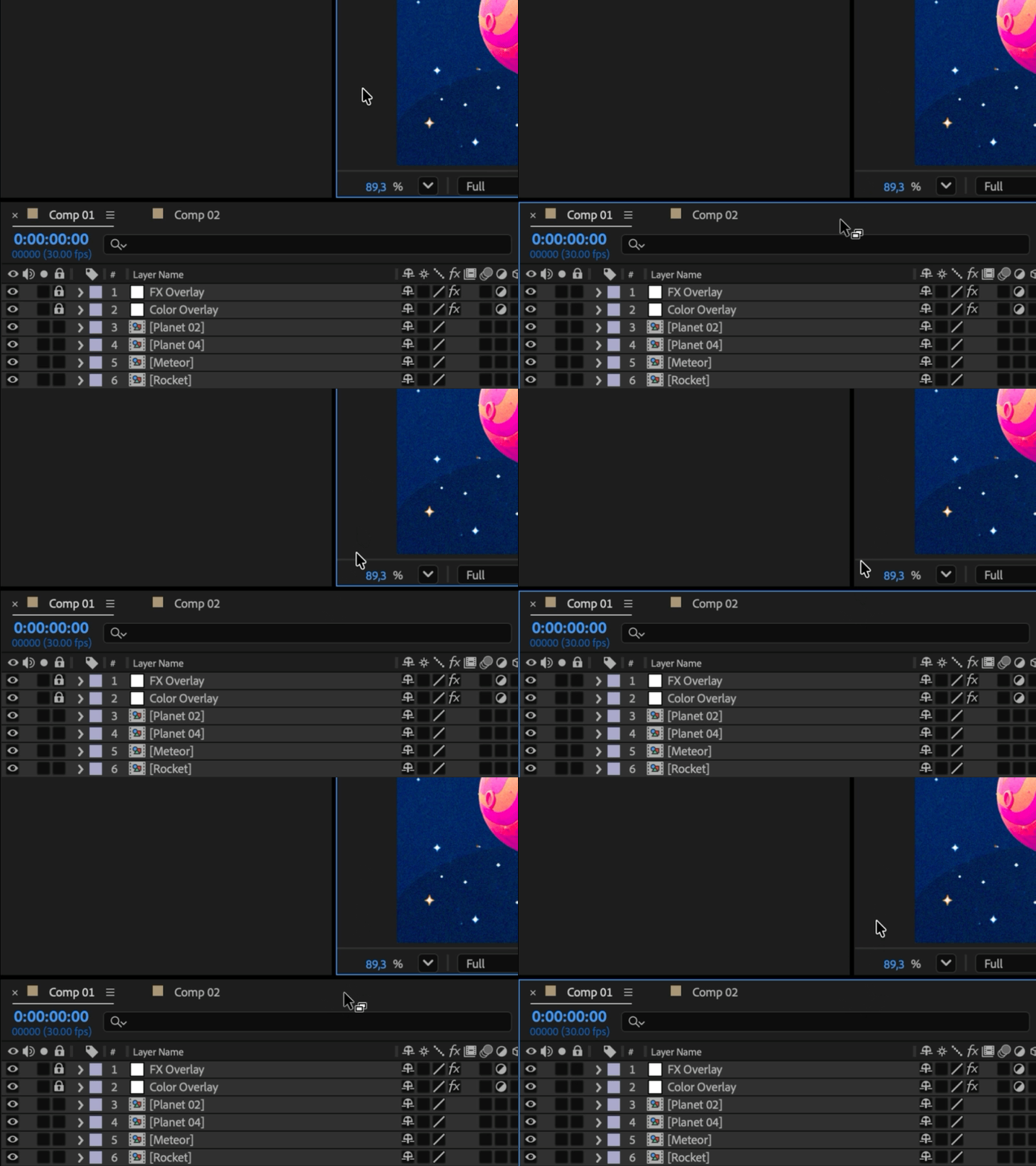
Free it in the Timeline, lock it again in the viewport.
Faux Lock follows your editing surface. Timeline selection temporarily releases a target so you can transform it, while viewport interaction restores click-through behavior.
Keep working while comps and target lists change.
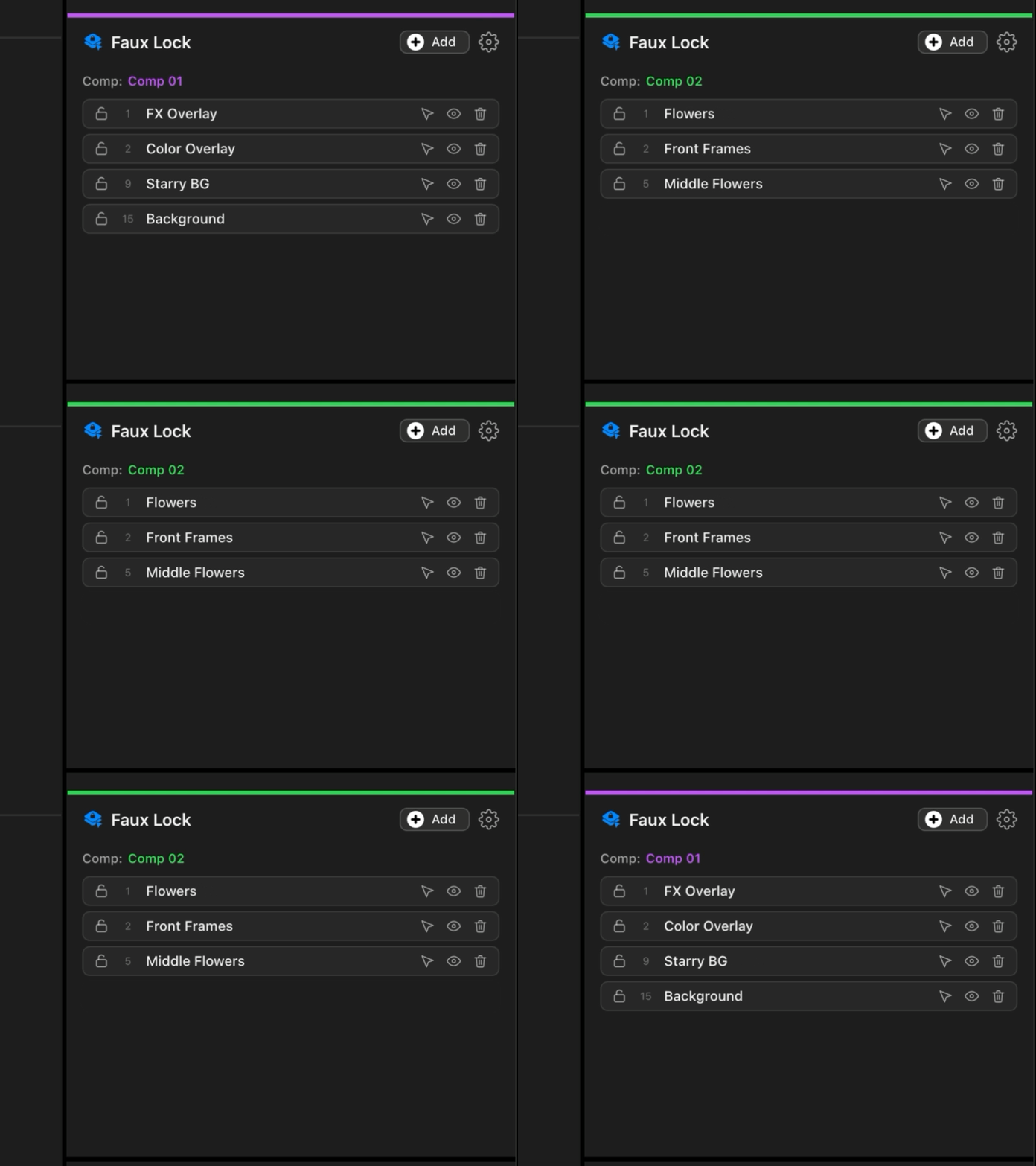
The panel tracks target state as compositions update, so the lock list stays useful during normal After Effects iteration.
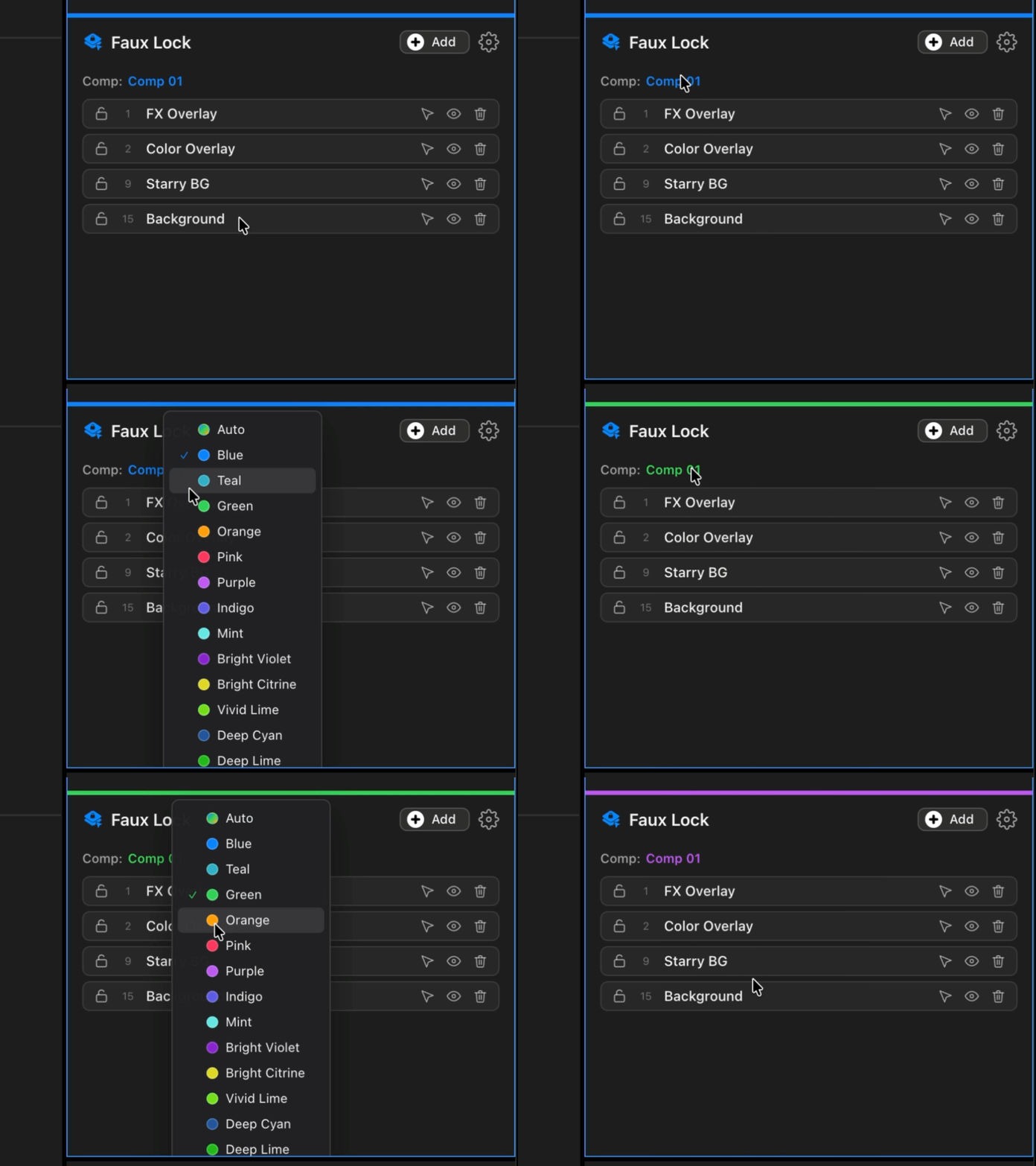
Readable target states at a glance.
A compact technical interface uses clear state color so locked, released, and active targets remain easy to scan in production work.
Four steps, then the panel stays out of your way.
Open the panel from Window > Extensions > Faux Lock.
Select one or more layers and click + Add.
Targets become click-through in the Comp viewport.
Select a target in the Timeline to edit it, then click the viewport to re-lock.
Precise control without the usual lock tradeoff.
Install Faux Lock with the free aescripts + aeplugins manager app. It handles the panel, the native engine, licensing, updates, and trial activation in one flow.
- Open the aescripts + aeplugins manager app.
- Search for Faux Lock and install it.
- Restart After Effects.
- Open the panel from Window > Extensions > Faux Lock.
Requirements: After Effects 2024 (24.0) or newer, macOS 11+ or Windows 10+.
- Open the panel from Window > Extensions > Faux Lock.
- Select one or more layers and click + Add to make them targets.
- With Faux Lock enabled, targets become click-through in the Comp viewport.
- Select a target in the Timeline to temporarily free it for editing.
- Click back in the viewport to re-lock it, or turn Faux Lock off to release everything.
Faux Lock makes layers click-through by toggling After Effects' built-in layer Lock as you click in and out of the Composition viewer. After Effects records every lock/unlock as an Undo step. This is how After Effects works for any plugin that touches the lock, not a Faux Lock bug.
Faux Lock groups each switch into a single Undo entry to keep this as small as possible. This is expected behaviour.
No. The native lock makes a layer untouchable everywhere, including the Timeline. Faux Lock only blocks selection in the Comp viewport. The layer stays fully editable in the Timeline.
Yes. Faux Lock supports macOS 11+ on Apple Silicon and Intel Macs, Windows 10+, and After Effects 2024 or newer.
No. Faux Lock collects no analytics or personal data, does not read project files or layer content, and makes no network connections of its own. Licensing and updates are handled by the aescripts manager.
Keep the layer. Lose the click trap.
Faux Lock is sold on aescripts + aeplugins. The manager app handles installation, licensing, updates, and trials.
Get it on aescripts